 Leadyol
1Install Leadyol
About 2 minutes
- Open the e-mail “Your Leadyol licence key” and click the download link (it expires after a few days; reply to the e-mail for a new one).
- Unzip the file (right-click → Extract all) and open the Leadyol folder.
- Double-click start.bat on Windows, or start.command on a Mac (the first time: right-click → Open). Leadyol opens in your browser. Keep the black window open: closing it stops Leadyol.
- Open Settings, paste your key under Licence and click Activate.
- On Home, click Install search engine. It is free, downloaded once (13–35 MB), and only needed the first time.
Node.js: the free engine Leadyol runs on
Windows: if it is missing, start.bat asks “Install it now? [Y/N]”. Press Y, click Yes if Windows asks for permission, and Leadyol starts by itself about a minute later.
Mac (or if the automatic install does not work): the page nodejs.org/en/download opens. Ignore the code box at the top and click the green button “Windows Installer (.msi)” or “macOS Installer (.pkg)”, open the file, click Next until Install, then start Leadyol again.
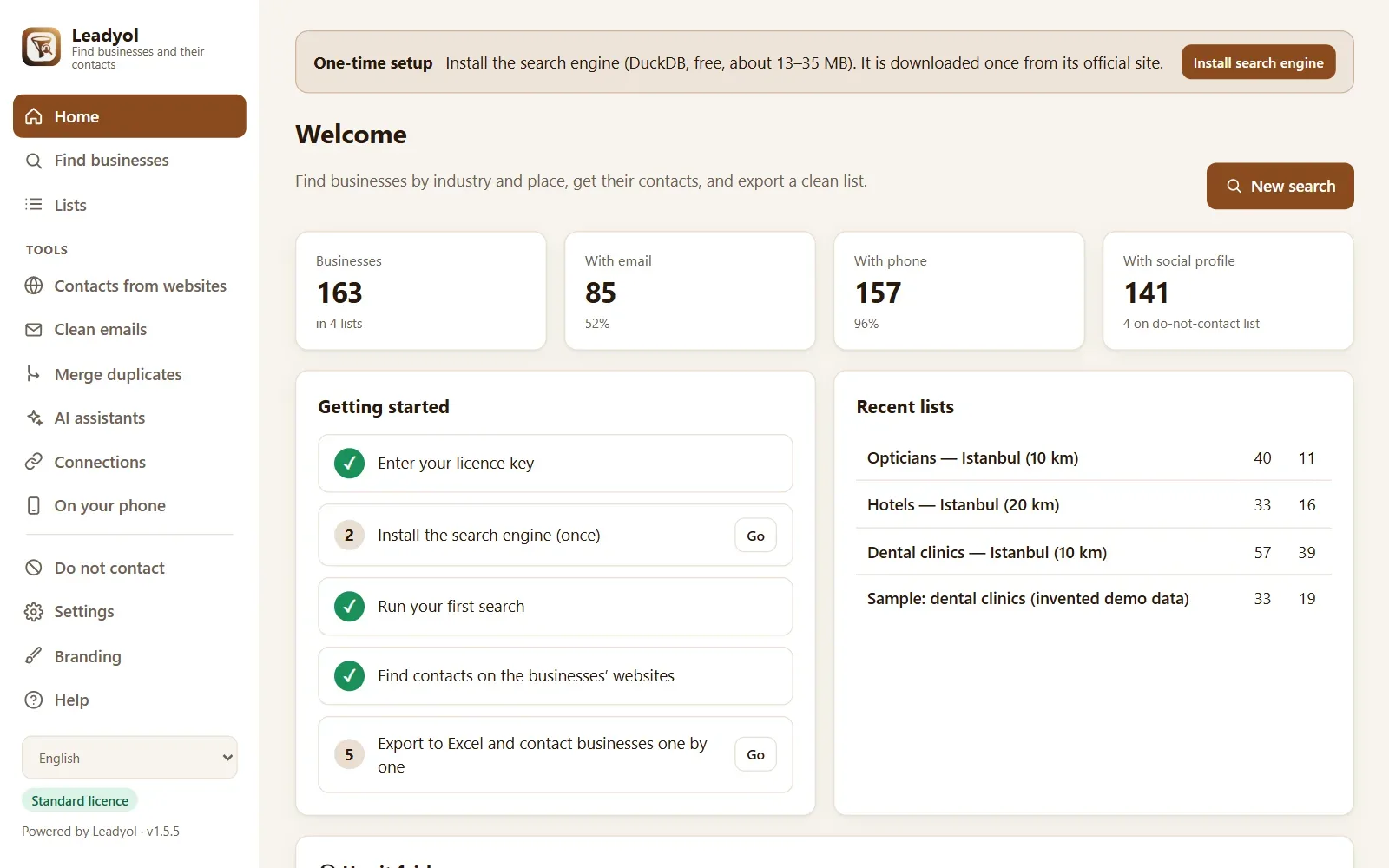
No key yet? Leadyol starts in demo mode with invented businesses, so you can look at every screen. Nothing is downloaded or visited until you activate a key.
2Build your first list
About 1 minute
- Open Find businesses.
- What? Type a category in any language: “dentist”, “diş”, “boulangerie”, “محامي”. You can add several.
- Where? Choose Around a city (with a radius), a region, a whole country or several countries.
- Click Start search. A city takes 20–60 seconds; a whole country a few minutes. You can keep working meanwhile.
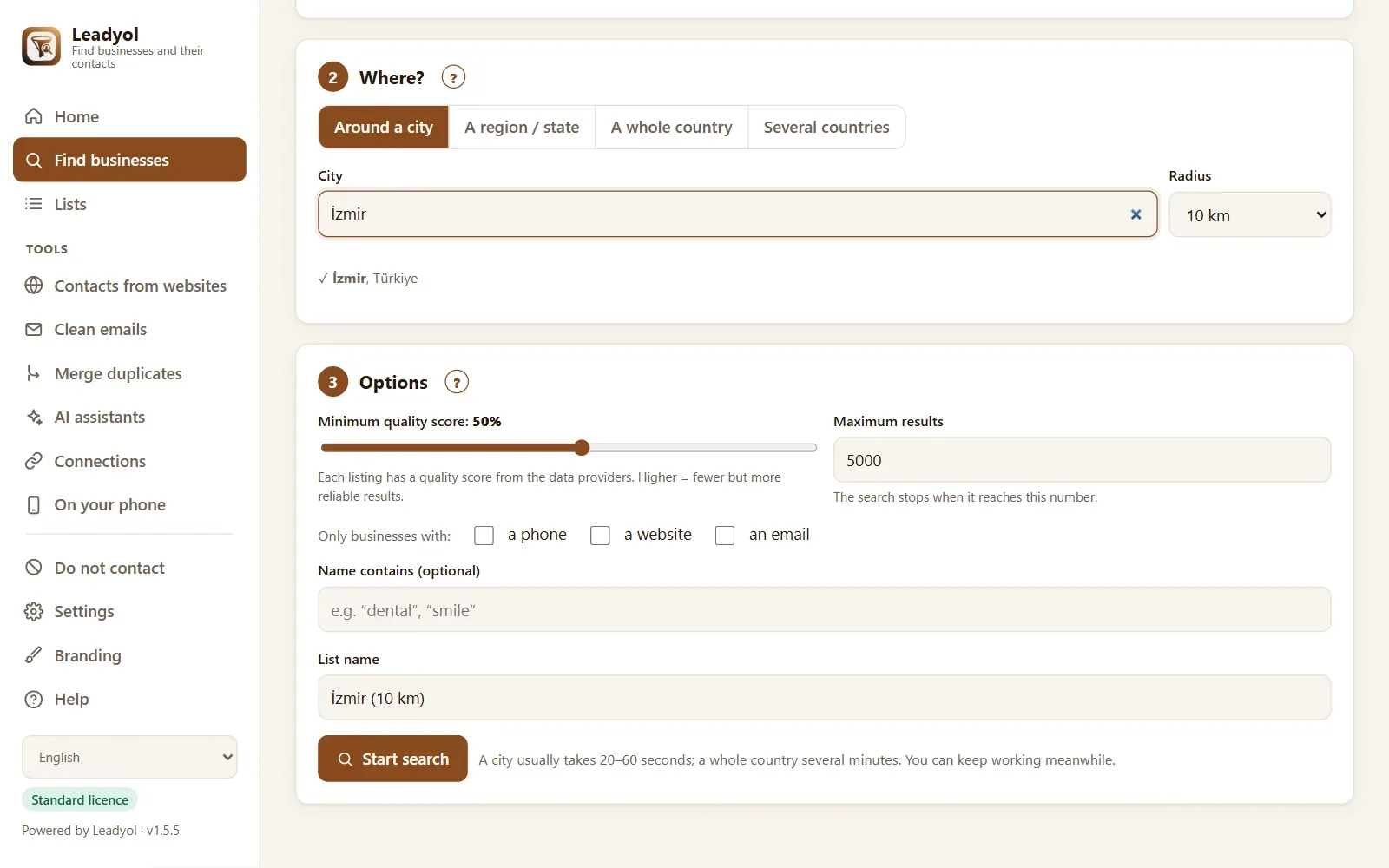
Few results? Lower the quality score, widen the radius, add a related category (“dental clinic” + “orthodontist”) or remove the “only with…” filters.
3Get their contacts and export
A few minutes, while you do something else
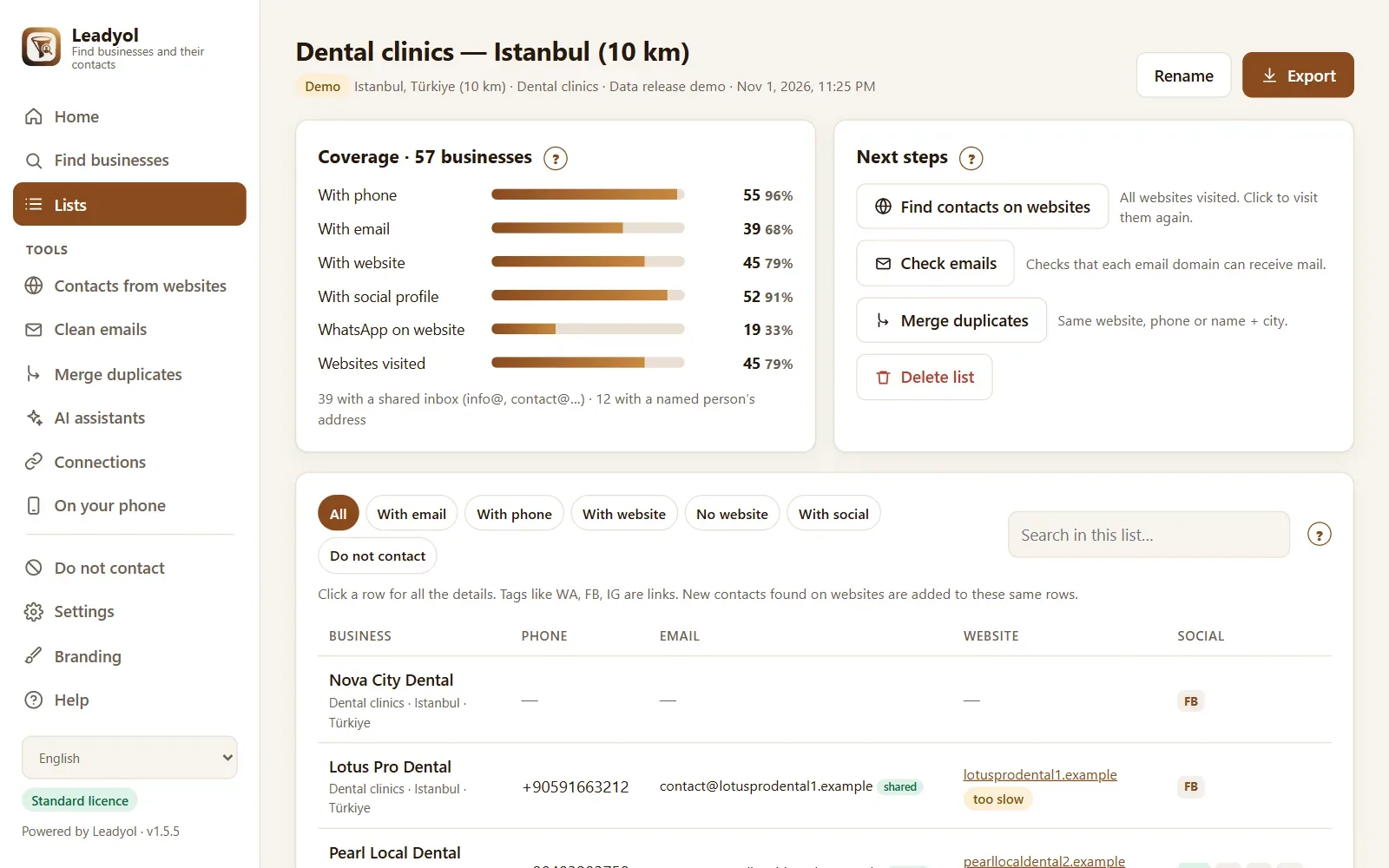
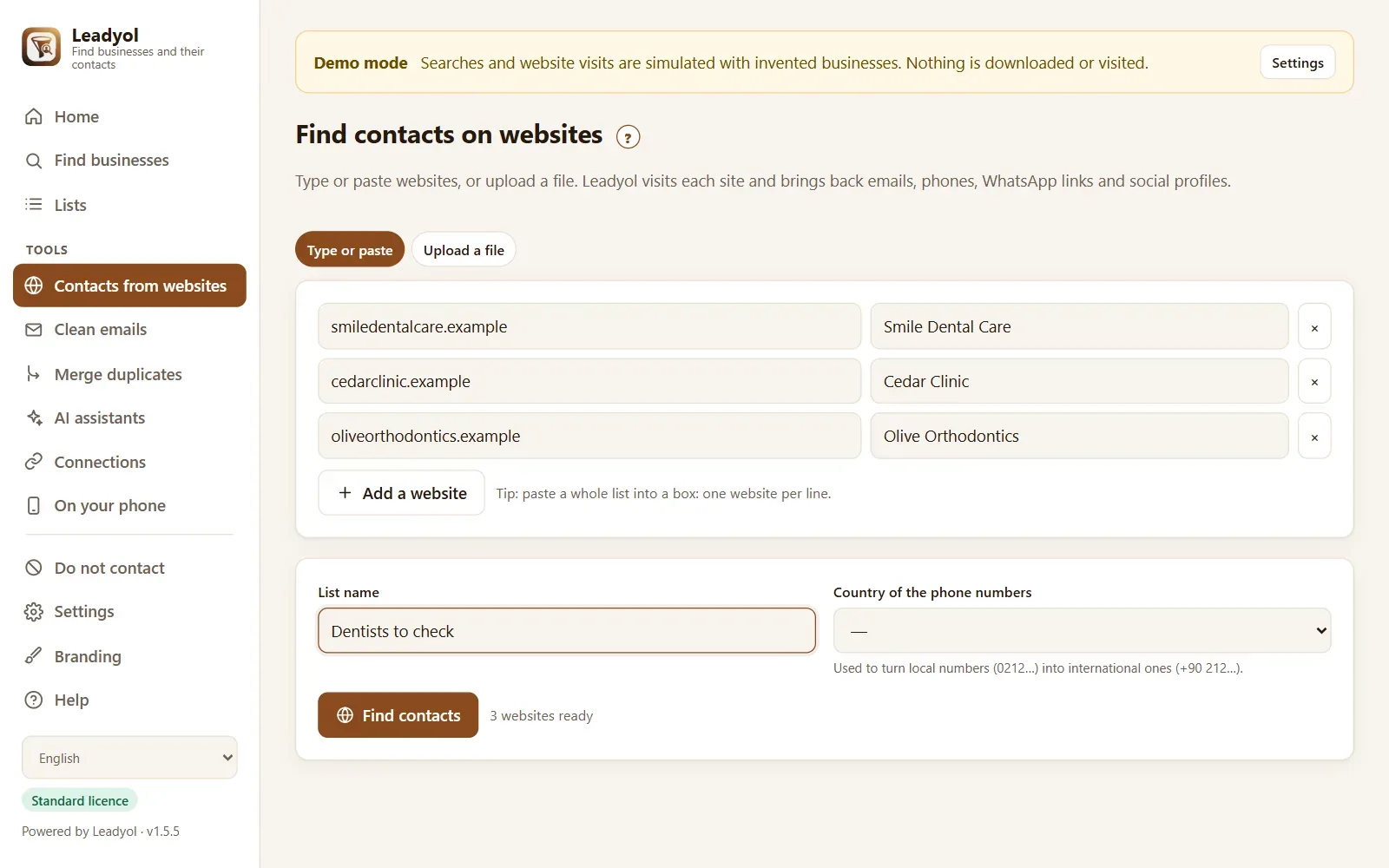
- In your list, click Find contacts on websites. Leadyol visits each business’s own website and brings back e-mails, phones, WhatsApp links and social profiles.
- Click Check emails: typos, throwaway addresses and domains that cannot receive mail are flagged. No e-mail is sent.
- Click Merge duplicates if you searched the same area twice.
- Click Export → Excel or CSV. One column per channel, with the source and date on every line.
Add anyone who asked not to be contacted to Do not contact: they are flagged in every list and always left out of exports. In the EU, the UK and Türkiye, tick “Leave out named people’s email addresses” when you export.
4Let an AI assistant do it for you
Optional, 1 minute to connect
Leadyol works with the AI assistant you already use. It adds no AI cost: the assistant uses your own plan.
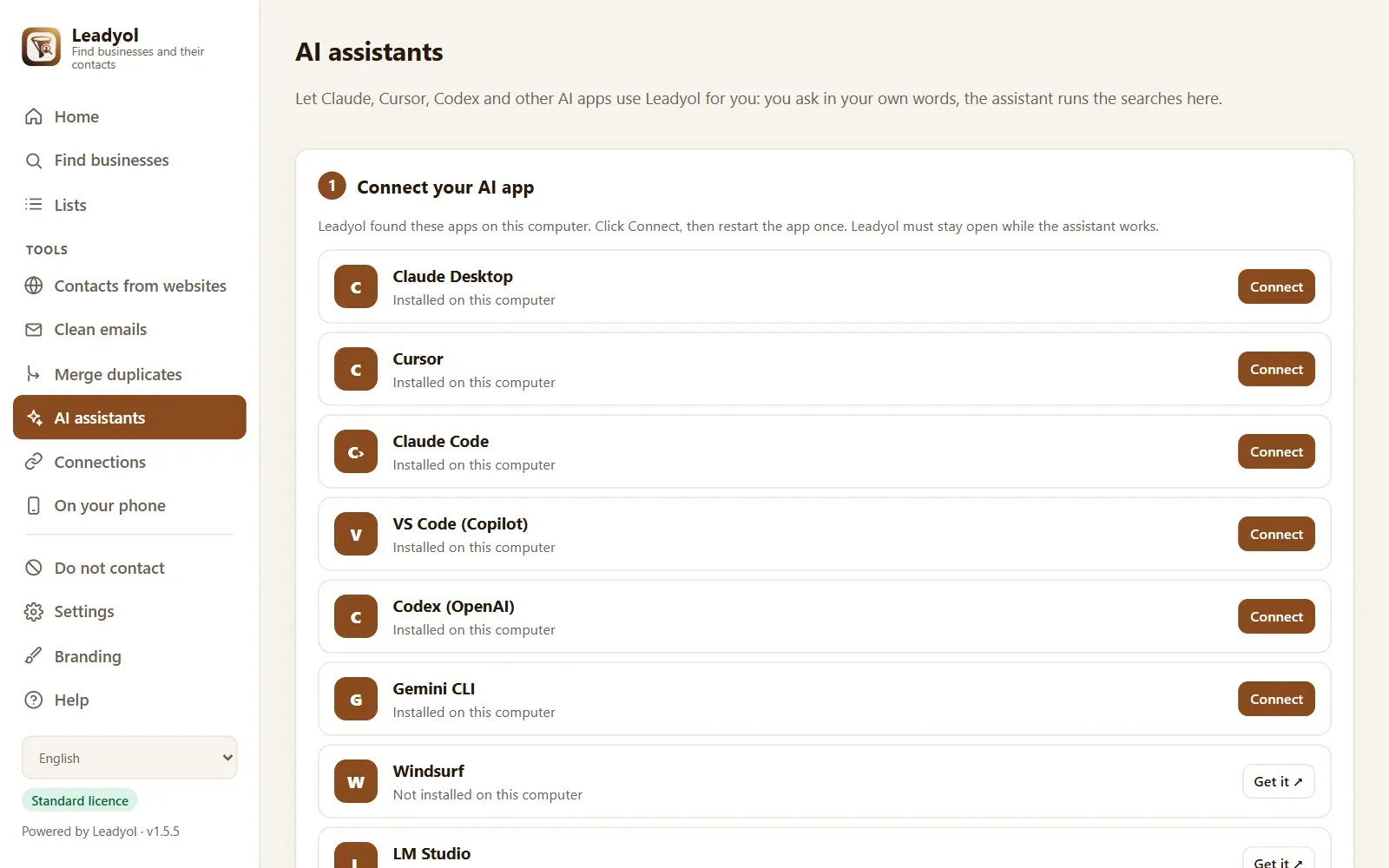
- In Leadyol, open AI assistants.
- Click Connect next to your app, then close and reopen that app once. For ChatGPT (paid plan): click Turn on the ChatGPT connector and follow the 4 steps shown.
- Ask it, for example:
Use Leadyol to find dental clinics within 10 km of Istanbul, get the contacts from their websites, and export the ones with an email to Excel.
It searches, filters, finds contacts and exports for you, in your language. Leadyol must stay open while it works. It never sends a message to anyone.
?Need help?
The guide in the app
Open Help in Leadyol: every screen explained, with short videos.
We do it with you
A 30-minute video call: we install Leadyol together, build your first list and set up your branding: $149.
Book the setupWrite to us
Reply to your licence e-mail or write to hello@leadyol.tr.